
Making a Delegate Payment
Need to make a payment on behalf of a student? It's never been easier!
To make a payment on behalf of a student, you must first be listed as a Delegate on their account. To learn more about about the Delegate Access Process click here.
Once you have been assigned as a delegate to a student's account, you will be given your own FSUID and password, which you can use to log in to the MyFSU Portal at https://my.fsu.edu.
Follow the steps below to make a payment on behalf of your student after you have received delegate access.
Instructions
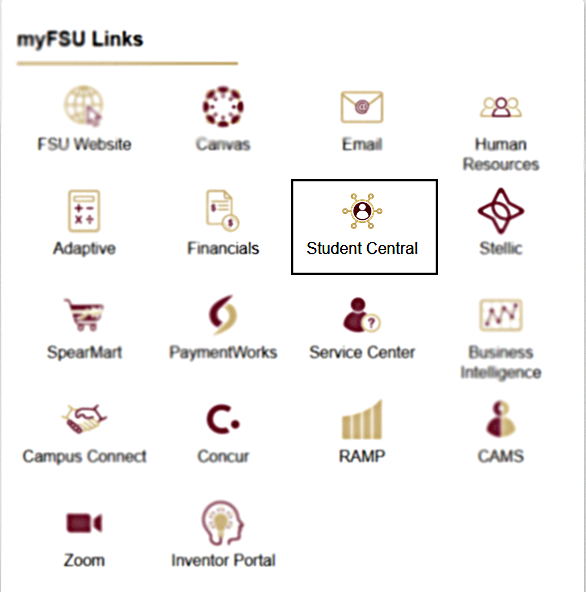
- Log in to to https://my.fsu.edu with your FSUID and password. Then, select Student Central under myFSU Links to enter Student Central.
Note: If you are a faculty or staff member, your experience will differ from the student point of entry. To access Transact as a faculty or staff member, navigate to the My Finances portlet in the myFSU portal and click Make a Payment.
- Navigate to your Delegate Homepage if you don't automatically land there.
Note: Because authenticated FSU users can have multiple personas, you may not arrive on the Delegate Homepage when you select Student Central from the portal. If needed, switch to the Delegate Homepage using the dropdown at the top of the page, then select My Student’s Details.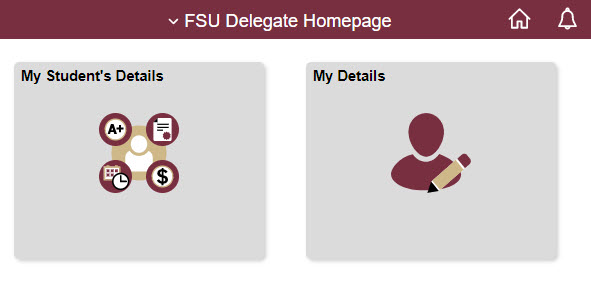
- If you are a delegate for multiple students, select a student you would like to view. You will make this selection again in Transact. If you are not the delegate to multiple students, go to step 4.
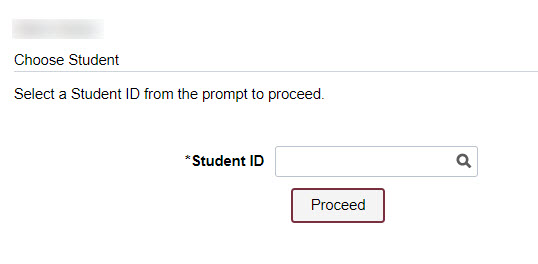
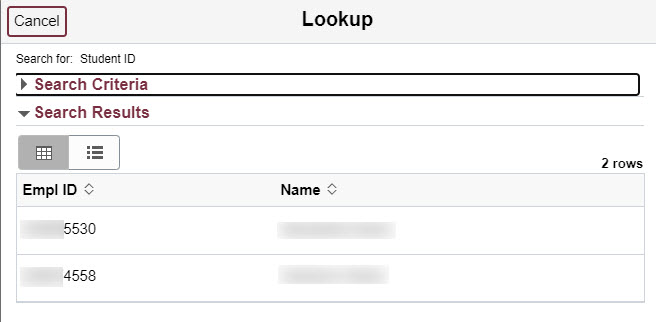
-
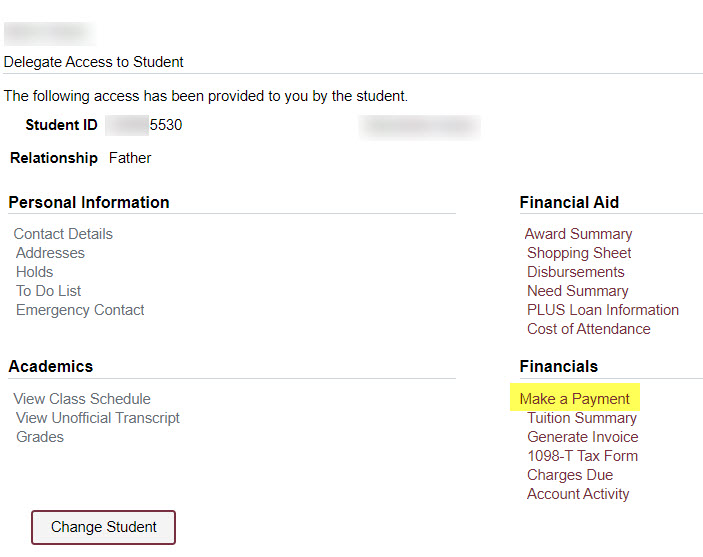
After selecting you student, select Make a Payment to access Transact.
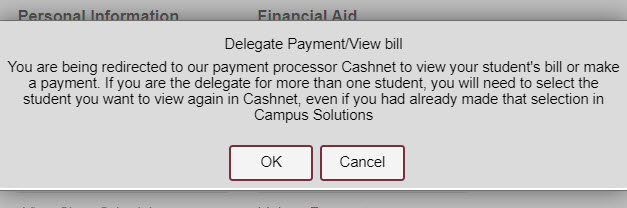
You will be presented with a warning as you are leaving myFSU Student Central. This warning indicates that if you are the delegate of multiple students, you will have to reselect your student in Transact.
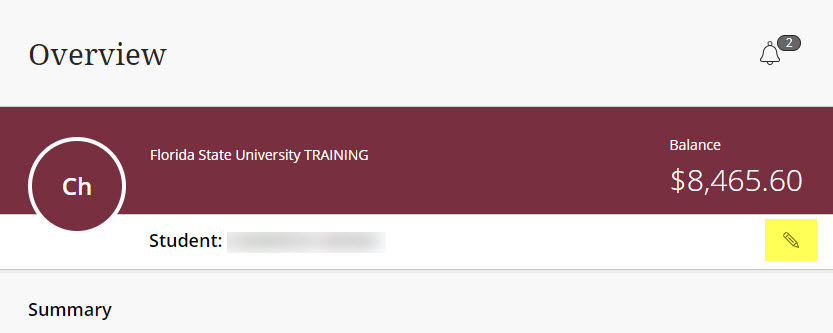
5. In Transact, you will be presented as the student and can make payments or research the account.
Note: If you are the delegate of multiple students, you will be able to swap between them using the pencil icon.
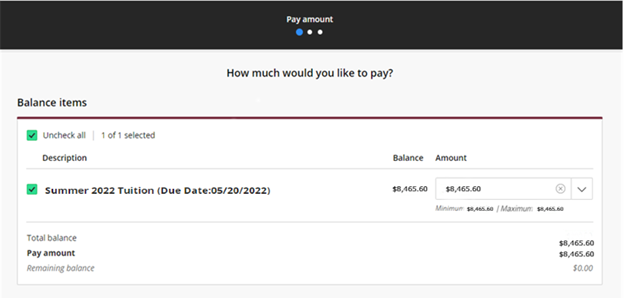
6. Select Make a Payment on the left side of the Transact screen. For each charge category presented, enter the amount that you would like to pay or select balance to pay the entire balance of the category.
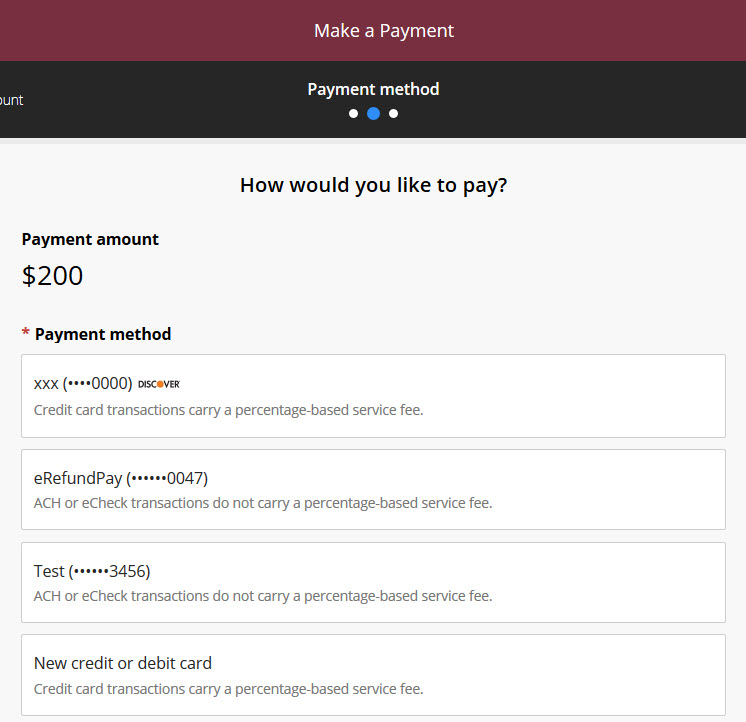
7. Choose or add a payment method and complete the payment. Credit card payments charge a service fee.
Note: If adding a new credit card or ACH option, you will be asked to enter your information on the next screen. Delegates will have the ability to store payment data on behalf of their students for future use.
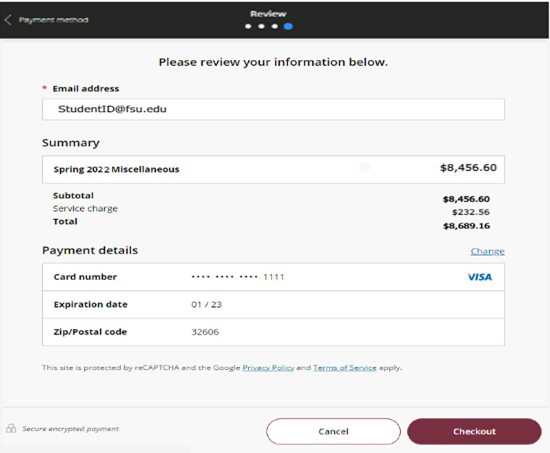
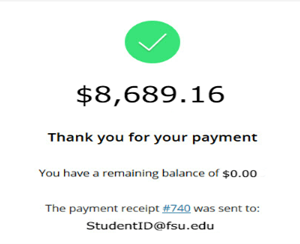
8. Review the payment confirmation and select Checkout. A receipt will be provided.
8. Sign out of the system.
Note: By clicking Sign Out, you will be brought back to the MyFSU Student Central system. If you are the delegate for multiple students, you will not be able to sign out and return to the MyFSU Student Central system. When you sign out, you will need to navigate back to Student Central to complete any additional transactions.